
Word to PDF Converter – Convert DOCX to PDF Online
Convert Word documents into PDF files while keeping your content organized and ready to share, print, or store.
Convert Word documents to PDF online with Toppez Tools Word to PDF Converter. Upload your DOCX file, convert it into a PDF, and download the finished document quickly. It is useful for reports, assignments, forms, resumes, business documents, and other files that need a consistent, shareable PDF format.
Smart Word to PDF Converter
Convert Microsoft Word (.docx) documents into clean, print-ready PDF files with client-side privacy and zero server uploads.
Drag & drop your Word (.docx) file here
Supports DOCX format (Max 25MB)
Comprehensive Introduction:
Converting a Word document into a PDF sounds like a small task, but it sits at the center of countless daily workflows — job applications, contracts, invoices, academic submissions, and business reports all eventually need to leave the editable, easily-altered world of DOCX and become a fixed, professional PDF. The problem is that most people still reach for clunky desktop software or online converters that demand a file upload to some distant server, a waiting period, and — too often — a login wall or a watermark stamped across their document. The Word to PDF Converter on Toppez Tools was built to remove every one of those friction points.
This tool lets you convert Word to PDF online using nothing but your browser. There’s no software to download, no plugin to install, and no account to create. More importantly, the entire conversion happens client-side, meaning your document is processed directly on your own device rather than being pushed through a third-party server. That distinction matters enormously if you’re handling sensitive material — resumes with personal details, signed contracts, financial statements, or internal business documents. Nothing leaves your machine, so there’s no exposure window, no server logs, and no risk of your file sitting in someone else’s storage bucket.
The conversion engine runs locally in the browser, there’s no upload queue, no server load balancing, and no waiting for a response from a remote API. You select your file, the tool processes it in real time, and your PDF is ready to download almost immediately — even for longer, image-heavy, or table-dense documents.
Whether you’re a student finalizing a thesis, an HR professional standardizing resumes, or a freelancer sending polished proposals to clients, this tool gives you a dependable, private, and genuinely fast way to convert Word to PDF online without the usual trade-offs.
Key Features of Toppez Tools Word to PDF Converter:
- 100% Client-Side Processing: Your DOCX file is converted entirely within your browser’s local environment — it is never transmitted to or stored on any external server.
- Zero Server Uploads: Because there’s no upload step, there’s no bandwidth bottleneck, no upload failure risk, and no third party ever gains access to your document.
- Formatting-Faithful Conversion: Fonts, headers, footers, page breaks, embedded images, tables, and bullet structures are preserved precisely as they appear in the original Word file.
- Bulk Processing Support: Convert multiple Word documents into individual PDFs in a single session, saving significant time for professionals handling batches of reports or resumes.
- No Installation Required: Works directly inside Chrome, Firefox, Edge, or Safari — no desktop application, browser extension, or system permissions needed.
- Cross-Platform Compatibility: Fully functional on Windows, macOS, Linux, and even tablets or mobile browsers, since it’s not tied to any specific operating system.
- No Watermarks or File Limits on Core Conversion: Get a clean, professional output PDF without branding overlays disrupting your document’s appearance.
- Instant Download, No Sign-Up: Skip the account creation and email verification steps that many competing tools force on users before releasing the converted file.
How to Use the Word to PDF Converter?
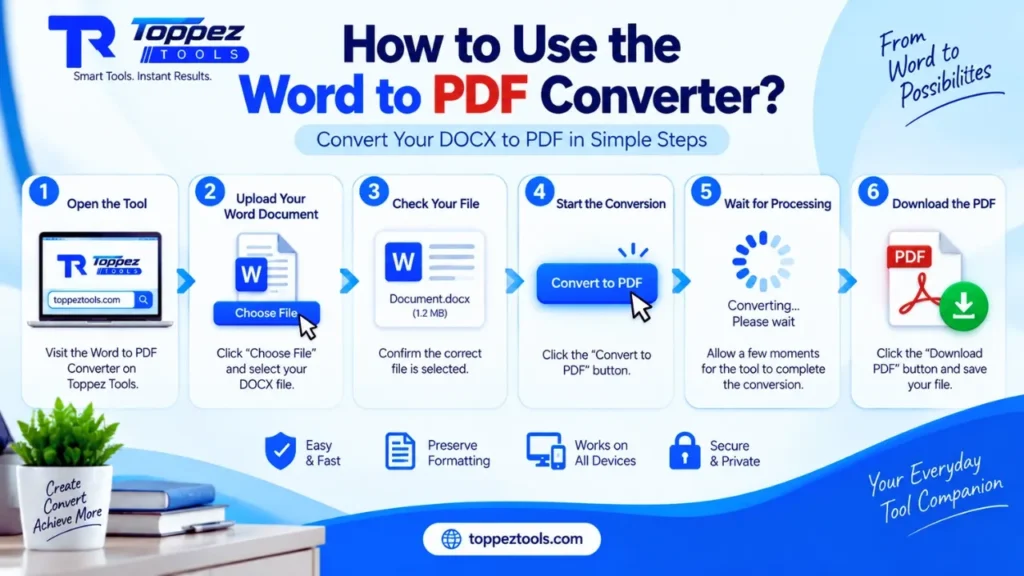
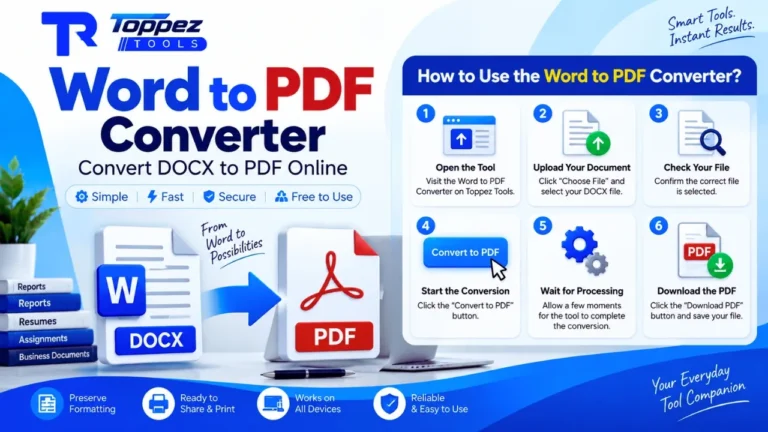
Converting a Word document into a PDF with Toppez Tools Word to PDF Converter is a simple process. Follow these steps to create a PDF from your DOCX file:
1. Open the Word to PDF Converter
Visit the Word to PDF Converter tool on Toppez Tools. You can use it directly from your web browser without installing additional software.
2. Upload Your Word Document
Click the Upload File or Choose File button and select the Word document you want to convert. The tool is primarily designed for DOCX files.
3. Check Your Document
After uploading, make sure the correct document has been selected. Check the displayed filename and, if available, the document preview before starting the conversion.
4. Start the Conversion
Click the Convert to PDF button. The tool will process your Word document and create a PDF version.
5. Wait for Processing
Allow the converter a few moments to complete the conversion. Processing time may vary depending on the document size and its contents.
6. Review the Converted PDF
Once the conversion is complete, review the generated PDF if a preview option is available. Check important elements such as text, headings, tables, images, spacing, and page breaks.
7. Download the PDF
Click the Download PDF button to save the converted document to your device. You can then share, print, submit, or store the PDF as needed.
Tips for Better Results
For the best conversion results, use a properly formatted DOCX document and check the original file for unusual fonts, complex layouts, embedded objects, or unsupported elements. Always review the final PDF before using it for important documents.
Why Use This Word to PDF Converter?
Converting a Word document to PDF can make your files easier to share, print, submit, and store. Toppez Tools Word to PDF Converter provides a straightforward way to turn Word documents into a more consistent PDF format without requiring desktop conversion software.
Key Benefits
- Easy Word to PDF Conversion – Convert DOCX documents into PDF with a simple workflow.
- Preserve Document Layout – Keep important elements such as text, headings, tables, images, and spacing as accurately as supported.
- Convenient Online Access – Use the tool directly from your browser without installing additional software.
- Quick Processing – Create a PDF from your Word document in just a few steps.
- Useful for Different Documents – Convert resumes, assignments, reports, forms, invoices, applications, and business documents.
- PDF-Friendly Sharing – PDF files are convenient for sharing because their layout is generally more consistent across devices.
- Easy Download – Download the converted PDF immediately after processing.
- Works Across Devices – Access the converter from supported desktop and mobile browsers.
- Simple for Beginners – The clean workflow makes document conversion easy even for users with limited technical experience.
- Suitable for Printing and Submission – PDF is widely used for documents that need to be printed, submitted, or archived.
Whether you need to convert a single DOCX file or regularly prepare documents for sharing, a dedicated Word to PDF Converter can simplify the process and reduce unnecessary steps.
Supported Formats & Specifications:
The Toppez Tools Word to PDF Converter is designed to convert common Microsoft Word documents into PDF format. Check the supported formats and specifications below:
| Specification | Details |
|---|---|
| Input Format | DOCX |
| Output Format | |
| Supported File Type | Microsoft Word Open XML Document |
| File Extension | .docx |
| Conversion Type | Word document to PDF |
| Text Support | Text, headings, paragraphs, lists |
| Table Support | Tables, where supported by the conversion engine |
| Image Support | Embedded images, where supported |
| Document Layout | Attempts to preserve the original document structure |
| Page Formatting | Based on the original Word document and conversion settings |
| Multiple Files | Depends on the tool’s implemented batch-conversion support |
| Output Quality | Designed to maintain readable text and document formatting |
| Installation Required | No |
| Device Support | Desktop, laptop, tablet, and supported mobile browsers |
| Output | Downloadable PDF file |
Note: Conversion accuracy can vary when a DOCX file contains complex layouts, unsupported fonts, advanced Word features, macros, or unusual embedded objects. Always review the generated PDF before using it for important documents.
Common Mistakes When Converting Word to PDF:
Although converting a Word document to PDF is usually straightforward, certain mistakes can affect the appearance or usability of the final file. Keep these points in mind for better conversion results.
1. Uploading the Wrong File
Make sure you select the correct DOCX document before starting the conversion. Accidentally uploading an outdated or incomplete version can result in the wrong PDF.
2. Not Checking the Original Document
Review your Word document before conversion. Check spelling, headings, images, tables, page breaks, and overall formatting.
3. Using Unsupported Fonts
Uncommon or custom fonts may not render exactly as expected during conversion. When possible, use widely supported fonts.
4. Ignoring Page Breaks
Improper page breaks can cause headings, paragraphs, or tables to appear on unexpected pages in the resulting PDF.
5. Using Complex Layouts
Documents containing complicated columns, floating objects, text boxes, or advanced Word elements may not convert perfectly.
6. Forgetting Embedded Images
Check that important images are properly inserted into the Word document rather than relying on missing or externally linked files.
7. Not Reviewing the Converted PDF
Always open the generated PDF and check its pages before sharing, printing, or submitting it.
8. Uploading a Damaged DOCX File
A corrupted or partially damaged Word document may fail to convert correctly. Open the original file in Word or another compatible editor first to verify that it works properly.
9. Ignoring File Size
Very large documents with many high-resolution images may take longer to process. Optimizing unnecessary images can help keep the document manageable.
10. Using the PDF Without a Final Check
For important resumes, applications, reports, invoices, or official documents, review the final PDF carefully to ensure that all content and formatting appear as intended.
Frequently Asked Questions (FAQs):
Yes. You can use the Toppez Tools Word to PDF Converter to convert a supported Word document into a PDF directly through your browser.
The converter is primarily designed to support DOCX (.docx) files. Check the tool interface for the currently supported file types.
The converter is designed to preserve the original document structure and formatting as accurately as the conversion process allows. Complex layouts or unsupported Word features may sometimes appear differently.
Yes. You can convert a supported DOCX document using the online converter without having Microsoft Word installed on your device.
Yes. A Word resume can be converted to PDF, making it easier to share with employers while keeping the document in a standardized format.
Yes, supported DOCX documents can contain images and tables. However, complex formatting or advanced elements may not always be reproduced exactly in the converted PDF.
Yes, you can access the tool through a supported mobile web browser. The exact experience may vary depending on your device and browser.
Differences can occur because Word and PDF use different rendering methods. Fonts, page breaks, complex layouts, text boxes, or unsupported elements can affect the final appearance.
This depends on the tool’s file-size and processing limits. Very large documents or files containing many high-resolution images may take longer to process.
Yes. It is recommended to open the converted PDF and check the text, images, tables, page breaks, and overall formatting before sharing, printing, or submitting the document.
Related Tools:
🔥 Popular Tools on Toppez
Explore our most frequently used utilities across the platform