
PDF to Word Converter – Convert PDF to Word Online
Convert PDF files into editable Word documents while keeping text, images, and document structure as accurately as possible.
Convert PDF files into editable Word documents with Toppez Tools PDF to Word Converter. Upload your PDF, convert it into a Word file, and download the result for editing, updating, sharing, or further document processing. It is useful for reports, forms, assignments, scanned documents, and other PDF files.
Smart PDF to Word Converter
Convert PDF documents into editable Microsoft Word (.docx) format with client-side text extraction and zero server uploads.
Drag & drop your PDF here
Supports single PDF document (Max 35MB)
Parsing document contents...
Introduction:
A PDF is convenient for sharing and printing, but editing its content can be difficult when you no longer have the original document. Toppez Tools PDF to Word Converter makes it easier to turn supported PDF files into editable Word documents that you can update, format, and reuse.
Simply upload your PDF, start the conversion, and download the resulting Word file. The tool is designed to retain important elements such as text, headings, paragraphs, tables, images, and document structure as accurately as possible.
It can be useful when you need to update an old report, edit an assignment, reuse information from a PDF, modify a business document, or make changes to a form. Instead of manually copying and retyping content, you can convert the PDF into an editable Word format and continue working on it.
For PDFs with complex layouts, multiple columns, unusual fonts, or scanned pages, the conversion result may vary depending on the document structure and the technology used by the converter. Reviewing the converted Word document before making important changes or sharing it is recommended.
Key Features of Toppez Tools PDF to Word Converter:
Toppez Tools PDF to Word Converter is designed to make PDF documents easier to edit by converting them into editable Word files. Whether you need to update a report, modify text, reuse information, or work with document content, the tool provides a simple conversion workflow.
1. PDF to Word Conversion
Convert supported PDF files into editable Word documents without manually retyping the content.
2. Editable Word Output
The converted document can be opened and edited using compatible word-processing software such as Microsoft Word or other DOCX-compatible applications.
3. Text Extraction
Extract text from supported PDF documents and make it available in an editable Word format.
4. Formatting Preservation
The converter is designed to retain important document elements such as headings, paragraphs, lists, tables, and spacing as accurately as the conversion process allows.
5. Image Support
PDFs containing images can be converted while retaining supported visual elements in the resulting Word document.
6. Simple Upload Process
Upload your PDF through a straightforward interface without complicated conversion settings.
7. Quick Conversion
Convert a PDF document into a Word file in just a few steps, depending on the document size and complexity.
8. Easy Download
Download the converted Word document after processing and continue editing it on your device.
9. Browser-Based Access
Use the converter directly through a supported web browser without requiring dedicated PDF conversion software.
10. Useful for Different Documents
Convert reports, assignments, forms, applications, business documents, reference materials, and other supported PDFs into an editable format.
Note: Conversion results can vary with scanned PDFs, complex layouts, unusual fonts, tables, columns, and other advanced document elements. Always review the converted Word file before using it for important work.
How to Use the PDF to Word Converter?
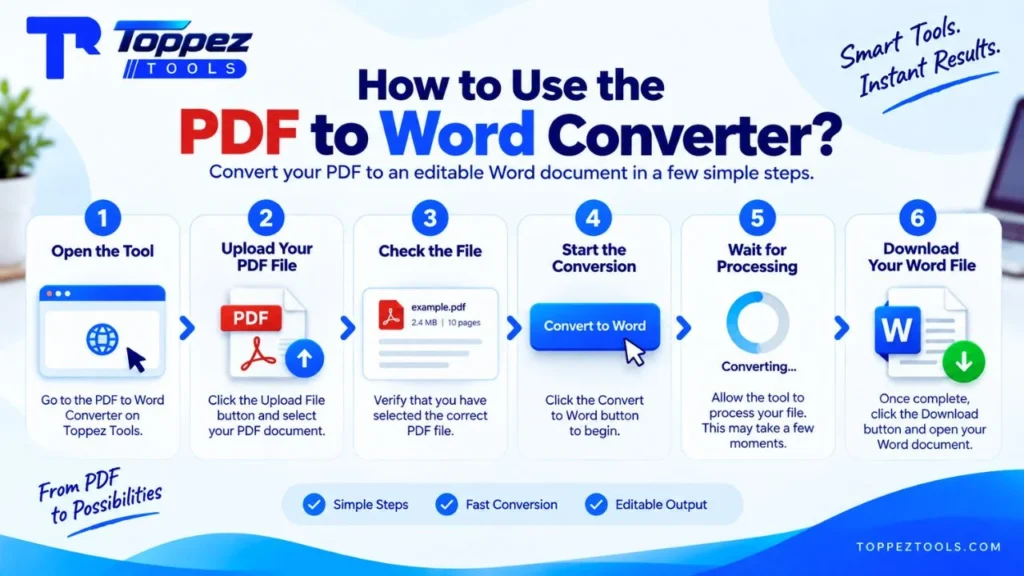
Converting a PDF into an editable Word document with Toppez Tools PDF to Word Converter is a simple process. Follow these steps:
1. Open the PDF to Word Converter
Go to the PDF to Word Converter tool on Toppez Tools using your preferred web browser.
2. Upload Your PDF File
Click the Upload File or Choose File button and select the PDF document you want to convert from your device.
3. Check the Uploaded File
After uploading, verify that you have selected the correct PDF. If a preview or file information is displayed, check the filename and document details before continuing.
4. Start the Conversion
Click the Convert to Word button to begin converting your PDF into an editable Word document.
5. Wait for Processing
Allow the tool to process the document. Processing time can vary depending on the PDF’s file size, number of pages, images, tables, and overall complexity.
6. Review the Converted Document
Once the conversion is complete, check the resulting Word file. Look for any changes to text, spacing, tables, images, fonts, or page layout.
7. Download the Word File
Click the Download button to save the converted Word document to your device. You can then open, edit, format, or share the file using compatible word-processing software.
Tips for Better Results
For the best results, use a clear and properly structured PDF. Documents with simple layouts and selectable text generally convert more predictably than heavily formatted or scanned PDFs. Always review the converted Word file before using it for important documents.
Why Use This PDF to Word Converter?
Converting a PDF into an editable Word document can save time when you need to update, reuse, or modify existing content. Toppez Tools PDF to Word Converter provides a simple way to transform supported PDF files into editable Word documents without manually recreating the content.
Key Benefits
- Easy PDF Conversion – Turn supported PDF files into editable Word documents in a few simple steps.
- Save Editing Time – Avoid manually retyping text from an existing PDF.
- Editable Output – Make changes to text, headings, paragraphs, and other supported content after conversion.
- Formatting Preservation – The converter aims to retain important elements such as text structure, tables, images, and spacing where supported.
- Useful for Existing Documents – Update reports, assignments, forms, applications, and business documents more easily.
- Quick Workflow – Upload your PDF, start the conversion, and download the resulting Word file.
- Easy to Download – Save the converted document directly to your device for further editing.
- Browser-Based Tool – Access the converter through a supported web browser without installing dedicated conversion software.
- Suitable for Different Needs – Convert documents for editing, updating, repurposing, or extracting reusable content.
- Beginner-Friendly Interface – A straightforward workflow makes PDF conversion accessible even if you have limited technical experience.
Whether you need to make a small correction or substantially edit an existing document, converting the PDF to Word can provide a more convenient starting point. For complex layouts, scanned PDFs, or documents containing unusual formatting, always review the converted file to make sure the content appears correctly.
Supported Formats & Specifications:
Toppez Tools PDF to Word Converter is designed to convert supported PDF documents into editable Word files. The table below outlines the key formats and specifications:
| Specification | Details |
|---|---|
| Input Format | |
| Input File Extension | .pdf |
| Output Format | Word Document |
| Output File Extension | .docx |
| Conversion Type | PDF to Word |
| Text Support | Selectable text in supported PDFs |
| Image Support | Embedded images, where supported |
| Table Support | Tables, where supported by the conversion engine |
| Headings & Paragraphs | Supported where recognized by the converter |
| Document Layout | Attempts to preserve the original structure |
| Page Structure | Converted according to the source PDF |
| Scanned PDFs | Depends on OCR support in the tool |
| Complex Layouts | Results may vary |
| Output Quality | Designed to provide editable and readable Word documents |
| Installation Required | No |
| Device Support | Desktop, laptop, tablet, and supported mobile browsers |
| Output | Downloadable Word document |
Note: Conversion accuracy may vary depending on the PDF’s structure. Scanned pages, complex tables, multiple columns, unusual fonts, forms, and advanced layouts may require additional editing after conversion. Always review the converted Word document before using it for important work.
Common Mistakes When Converting PDF to Word
Converting a PDF to Word is usually straightforward, but certain types of documents can produce unexpected results. Avoid these common mistakes for a smoother conversion.
1. Uploading the Wrong PDF
Always check that you have selected the correct PDF before starting the conversion. Using an outdated or incomplete file can result in the wrong Word document.
2. Using a Damaged PDF
A corrupted or partially damaged PDF may not convert correctly. Open the original PDF first to make sure its pages and content are accessible.
3. Expecting Scanned PDFs to Convert Perfectly
Scanned PDFs contain images of pages rather than selectable text. If OCR is not supported or cannot accurately recognize the content, the resulting Word document may require significant editing.
4. Ignoring Complex Layouts
Multiple columns, text boxes, floating elements, forms, and unusual page structures may not be reproduced exactly in Word.
5. Using Uncommon Fonts
Fonts that are embedded differently or unavailable during conversion may change the appearance of text in the resulting document.
6. Not Checking Tables
Tables with merged cells, complicated borders, or unusual formatting can sometimes shift during conversion. Review important tables carefully.
7. Forgetting to Review Images
Images, charts, logos, and other visual elements may change position or size. Check them after conversion.
8. Not Reviewing the Converted Word File
Always open the resulting DOCX file and check the text, formatting, page breaks, tables, and images before sharing or editing it further.
9. Uploading Very Large Files
Large PDFs with many pages or high-resolution images may take longer to process and may be subject to the tool’s file-size limits.
10. Assuming Every PDF Will Convert Identically
PDFs can be created in many different ways. A text-based PDF may convert differently from a scanned document or a PDF containing highly complex formatting. Review the final Word file to ensure it meets your requirements.
Frequently Asked Questions (FAQs):
Yes. You can use the Toppez Tools PDF to Word Converter to convert supported PDF files into editable Word documents directly through your browser.
The converted file is provided as a Word document in DOCX format (.docx), provided that the tool supports this output format.
Yes. After conversion, you can open the DOCX file in Microsoft Word or another compatible word-processing application and edit the available content.
The converter attempts to retain important elements such as text, headings, paragraphs, tables, images, and spacing. However, complex PDF layouts may require some manual adjustments.
This depends on whether the converter supports OCR (Optical Character Recognition). Scanned PDFs may need OCR to turn text contained in page images into editable text.
Yes, supported PDF files containing images can be processed. The placement and appearance of images may vary depending on the source document and conversion process.
Tables may be converted into editable Word elements when they are recognized correctly. Complex tables, merged cells, or unusual layouts may require manual formatting afterward.
Yes, supported multi-page PDF documents can be converted into a Word document, subject to the tool’s file-size and processing limitations.
PDF and Word use different document structures. Fonts, columns, page breaks, tables, images, and complex positioning can therefore change during conversion.
Yes. Always review the converted DOCX file for missing text, formatting changes, incorrect page breaks, tables, and images before using or sharing it for important purposes.
Related Tools:
🔥 Popular Tools on Toppez
Explore our most frequently used utilities across the platform