
PDF Compressor – Compress PDF Files Online
Reduce PDF file size while maintaining a practical balance between file size and document quality.
Compress PDF files online with Toppez Tools PDF Compressor. Upload your PDF, choose the appropriate compression level, and reduce the document size quickly. Track the original and compressed file sizes to see your savings, then download the optimized PDF for easier sharing, storage, or uploading.
Smart PDF Compressor
Reduce PDF file size while maintaining crystal-clear document quality with zero server uploads and 100% data privacy.
Drag & drop your PDF here
Supports all standard PDF documents (Max 50MB)
Introduction:
Large PDF files can be difficult to share, upload, email, or store, especially when they contain high-resolution images, scanned pages, or many pages of content. Toppez Tools PDF Compressor helps reduce PDF file size so your documents are easier to manage and share.
Simply upload your PDF, select a suitable compression level, and start the compression process. The tool can show the original and compressed file sizes, allowing you to see how much space has been saved.
A PDF compressor is useful for reducing file sizes before sending documents by email, uploading them to websites, submitting online forms, or storing multiple files on your device. Choosing an appropriate compression level can help balance file size reduction with the readability and visual quality of the document.
For documents containing detailed graphics or high-resolution images, stronger compression may produce a smaller file but can also affect visual quality. For important documents, review the compressed PDF before sharing or submitting it to make sure the text, images, and overall appearance remain suitable for your needs.
Key Features of Toppez Tools PDF Compressor:
Toppez Tools PDF Compressor is designed to help reduce the size of PDF documents while giving you control over the compression process. It can be useful when you need smaller files for sharing, uploading, storing, or submitting online.
1. Reduce PDF File Size
Compress PDF documents to create smaller files that are easier to store, share, and upload.
2. Multiple Compression Levels
Choose from different compression levels to find a suitable balance between file size reduction and document quality.
3. Live File Size Tracker
Compare the original file size with the compressed file size and see how much space has been saved.
4. Savings Percentage
Track the percentage of file-size reduction after compression to understand the effectiveness of the selected settings.
5. Simple Upload Process
Upload your PDF through a straightforward interface without complicated configuration.
6. Fast PDF Compression
Process supported PDF files quickly, depending on the document size, number of pages, and content.
7. Quality-Aware Compression
Select an appropriate compression level based on whether you prioritize smaller file size or better visual quality.
8. Easy PDF Download
Download the compressed PDF after processing and save it directly to your device.
9. Browser-Based Tool
Access the PDF Compressor through a supported web browser without requiring dedicated PDF compression software.
10. Useful for Different Purposes
Reduce PDF sizes before emailing documents, uploading files, submitting forms, sharing reports, or saving files for long-term storage.
11. Private Browser Processing
If the current implementation processes files entirely in the browser, your PDF can be compressed locally without uploading it to a remote server.
12. User-Friendly Interface
A clean and simple workflow makes PDF compression accessible to beginners as well as regular users.
Note: Stronger compression can sometimes affect image quality or other visual elements. Choose the compression level according to your document’s purpose and review the final PDF before using it for important work.
How to Use the PDF Compressor?
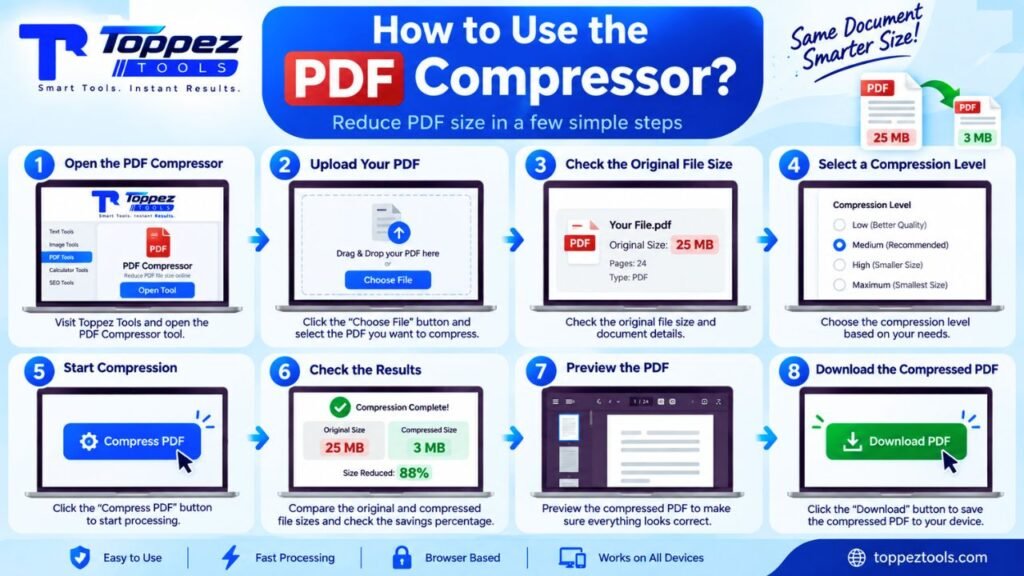
Compressing a PDF with Toppez Tools PDF Compressor is a simple process. Follow these steps to reduce your document size:
1. Open the PDF Compressor
Visit the PDF Compressor tool on Toppez Tools using your preferred web browser.
2. Upload Your PDF
Click the Upload File or Choose File button and select the PDF you want to compress from your device.
3. Check the Original File Size
After uploading, check the displayed file information and note the original PDF size. This makes it easier to compare the results after compression.
4. Select a Compression Level
Choose the compression level that matches your needs. A stronger compression setting can produce a smaller file, while a lighter setting may better preserve image and visual quality.
5. Start Compression
Click the Compress PDF button to begin processing. The tool will optimize the PDF according to the selected compression settings.
6. Check the Compression Results
Once processing is complete, compare the original and compressed file sizes. If available, check the displayed size reduction and savings percentage.
7. Preview the Compressed PDF
Open or preview the compressed document when possible. Check the text, images, page layout, and overall readability to make sure the result is suitable.
8. Download the Compressed PDF
Click the Download button to save the optimized PDF to your device. You can now use the smaller file for sharing, uploading, emailing, or storage.
Tips for Better Results
Choose the compression level based on your purpose. Use lighter compression when visual quality is important and stronger compression when reducing file size is the priority. Always review the final PDF before submitting or sharing an important document.
Why Use This PDF Compressor Tool?
Large PDF files can be inconvenient when you need to upload, email, share, or store them. Toppez Tools PDF Compressor helps reduce PDF file size while giving you control over the compression level and allowing you to compare the results.
Key Benefits
- Reduce PDF File Size – Create smaller PDF files that are easier to upload, share, and store.
- Choose Compression Levels – Select a suitable compression level based on your file-size and quality requirements.
- Track Savings – Compare the original and compressed file sizes to see how much space you have saved.
- See Reduction Percentage – Quickly understand the amount of compression achieved with the savings percentage.
- Balance Size and Quality – Use lighter compression when visual quality matters or stronger compression when a smaller file is the priority.
- Save Upload Time – Smaller PDF files can be more convenient when uploading them to websites or online forms.
- Easier Email Sharing – Reduce document size when attachments are too large for your preferred email service.
- Simple Workflow – Upload, select compression, process, review, and download without complicated settings.
- Browser-Based Access – Use the tool through a supported web browser without installing separate PDF compression software.
- Useful for Different Documents – Compress reports, assignments, forms, scanned documents, presentations, and other supported PDFs.
- Check Results Easily – Review the compressed PDF before sharing or submitting it.
For the best results, choose a compression level based on how the PDF will be used. Documents with high-resolution images may benefit from stronger compression, while visually sensitive documents may require a lighter setting.
Supported Formats & Specifications:
Toppez Tools PDF Compressor is designed to reduce the size of supported PDF documents while providing different compression options. The main specifications are:
| Specification | Details |
|---|---|
| Input Format | |
| File Extension | .pdf |
| Output Format | |
| Conversion Type | PDF compression |
| Compression Levels | Multiple levels, depending on tool implementation |
| File Size Tracking | Original and compressed file sizes |
| Savings Tracking | Displays file-size reduction and percentage savings, if implemented |
| Text Content | Preserved as supported by the compression method |
| Images | May be optimized depending on compression level |
| Page Structure | Designed to retain the original PDF page structure |
| Output Quality | Depends on the selected compression level and source PDF |
| Preview | Available if implemented in the tool |
| Download | Compressed PDF can be downloaded after processing |
| Installation Required | No |
| Device Support | Desktop, laptop, tablet, and supported mobile browsers |
| Processing Method | Browser-based if implemented that way |
| Maximum File Size | Depends on the tool’s configured limits |
Note: Compression results vary depending on the PDF’s content. Image-heavy and scanned PDFs may achieve different levels of size reduction than text-based documents. Stronger compression can also affect image quality, so review the compressed PDF before using it for important documents.
Common Mistakes When Compressing PDF Files:
PDF compression is generally simple, but choosing the wrong settings or skipping a final check can affect the quality and usability of the compressed document. Avoid these common mistakes:
1. Choosing Maximum Compression Every Time
The strongest compression does not always provide the best result. It can reduce image quality or make graphics less clear. Choose a compression level based on your needs.
2. Not Checking the Original File Size
Note the original PDF size before compression. This helps you accurately compare the final file size and measure the savings.
3. Ignoring Document Quality
A smaller PDF is not always better if important text, images, charts, or diagrams become difficult to read. Always balance file size with readability.
4. Compressing an Already Optimized PDF
Some PDFs have already been compressed. Repeated compression may provide little additional size reduction and can sometimes affect visual quality.
5. Not Reviewing the Compressed PDF
Always open the compressed file after processing. Check text, images, page layout, links, and other important elements before sharing it.
6. Using Strong Compression for Image-Heavy Documents
Scanned documents, photographs, and graphic-heavy PDFs may lose noticeable image quality under aggressive compression. Consider using a lighter setting when visual detail matters.
7. Ignoring Important PDF Elements
Forms, annotations, bookmarks, hyperlinks, embedded fonts, and other advanced PDF features may behave differently depending on the compression method. Verify important elements after compression.
8. Compressing the Wrong File
Before uploading, make sure you have selected the correct PDF and the latest version of the document.
9. Forgetting the Purpose of the PDF
Consider where the compressed PDF will be used. A document intended for email may have different size requirements from one intended for high-quality printing.
10. Not Comparing the Results
If the tool provides original and compressed file sizes or a savings percentage, use these details to determine whether the selected compression level produced a useful result.
Frequently Asked Questions (FAQs):
A PDF Compressor reduces the file size of a PDF by optimizing its content. This can make the document easier to upload, share, email, and store.
The amount of size reduction depends on the original PDF. Image-heavy and scanned PDFs may have different compression results compared with text-based documents.
It can, depending on the compression level. Stronger compression may affect image quality, while lighter compression generally prioritizes visual quality.
Choose the level based on your purpose. Use lighter compression when document quality is important and stronger compression when reducing file size is the main priority.
Yes, supported PDFs containing images can be compressed. The resulting image quality may vary depending on the selected compression settings.
Yes, if the PDF is supported by the tool. Scanned documents can sometimes achieve significant size reductions because they commonly contain image-based pages.
The goal of compression is to reduce file size while keeping the document usable. However, very strong compression can affect certain visual elements, so reviewing the result is recommended.
Yes. Compressing a large PDF can make it more convenient to upload when a website or online form has a file-size limit.
Normally, compression is intended to reduce the file size rather than remove pages. However, you should review the resulting PDF to verify that its content and structure remain correct.
Compare the original and compressed file sizes. If the tool provides a savings percentage, you can also use it to see how much the file size was reduced.
Related Tools:
🔥 Popular Tools on Toppez
Explore our most frequently used utilities across the platform