
PDF Splitter – Split PDF Files Online
Split large PDF documents into smaller files by selecting individual pages or specific page ranges.
Split PDF files online with Toppez Tools PDF Splitter. Upload a PDF, select the pages or ranges you want to extract, and create separate PDF documents quickly. It is useful for separating chapters, extracting selected pages, organizing reports, sharing specific sections, and managing large PDF files more efficiently.
Smart PDF Splitter
Extract specific pages, split page ranges, or separate individual pages into new PDF files with 100% client-side privacy.
Drag & drop your PDF here
Select a multi-page PDF document to split (Max 50MB)
Introduction:
Large PDF documents often contain pages that you do not need to share, print, submit, or store together. Toppez Tools PDF Splitter makes it easier to divide a PDF into smaller, more manageable documents by selecting specific pages or page ranges.
You can upload your PDF, choose the pages you want to separate, and create individual PDF files based on your selected range. This can be useful for extracting a particular chapter from a report, separating selected pages from a document, sharing only the relevant section of a file, or organizing large PDFs into smaller documents.
Instead of editing the original document manually, a PDF splitter provides a convenient way to extract the pages you need while keeping them in PDF format. It can be especially helpful for students, professionals, businesses, and anyone who regularly works with multi-page PDF documents.
Before splitting an important document, check the page numbers carefully to ensure you select the correct pages. After the process is complete, review the resulting PDF files to confirm that the required pages and content have been included correctly.
Key Features of Toppez Tools PDF Splitter:
Toppez Tools PDF Splitter helps you divide large PDF documents into smaller, more manageable files. It is useful when you need to extract selected pages, separate sections, or organize a lengthy PDF into individual documents.
1. Easy PDF Splitting
Split a supported PDF into smaller PDF files through a simple and straightforward workflow.
2. Select Specific Pages
Choose individual pages that you want to extract from the original document.
3. Split by Page Range
Enter a specific page range to separate a section of a PDF, such as pages 10–20 from a larger document.
4. Extract Important Sections
Create a separate PDF containing only the pages you need, making it easier to share or organize specific information.
5. Preserve PDF Format
The extracted pages remain in PDF format, making them convenient for viewing, printing, sharing, and storage.
6. Multiple Splitting Options
Use the available page-selection or range-based options according to the features implemented in the tool.
7. Simple File Upload
Upload your PDF using an easy-to-use file selection interface without complicated setup.
8. Fast Processing
Split supported PDF documents quickly, depending on the file size, number of pages, and processing method.
9. Easy Download
Download the resulting PDF file or files after the splitting process is completed.
10. Browser-Based Access
Use the PDF Splitter through a supported web browser without installing dedicated PDF editing software.
11. Useful for Large Documents
Separate lengthy reports, books, manuals, assignments, invoices, forms, and other multi-page PDFs into smaller sections.
12. Beginner-Friendly Interface
A clear workflow makes it easier for users to upload a PDF, select pages, split the document, and download the results.
Note: Available splitting options and batch-processing capabilities depend on the actual implementation of the Toppez Tools PDF Splitter. Always review the resulting files to confirm that the intended pages were extracted correctly.
How to Use the PDF Splitter?
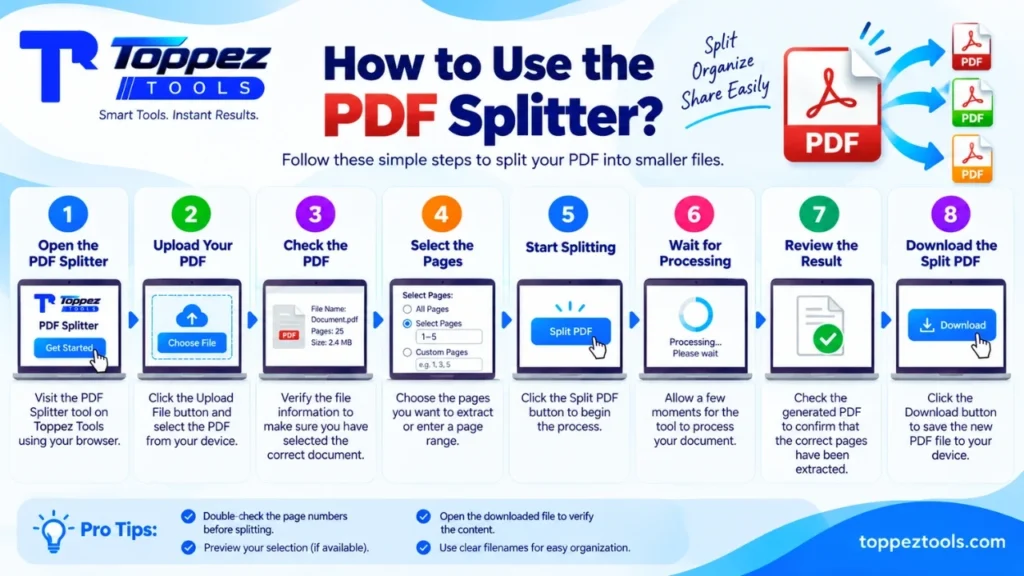
Splitting a PDF with Toppez Tools PDF Splitter is a simple process. Follow these steps to extract the pages you need:
1. Open the PDF Splitter
Visit the PDF Splitter tool on Toppez Tools using your preferred web browser.
2. Upload Your PDF
Click the Upload File or Choose File button and select the PDF you want to split from your device.
3. Check the PDF
After uploading, review the displayed file information and confirm that you have selected the correct document.
4. Select the Pages
Choose the pages you want to extract. Depending on the available options, you may select individual pages or enter a page range such as 1–5 or 10–15.
5. Start the Splitting Process
Click the Split PDF button to process your selected pages. The tool will create a separate PDF based on your selection.
6. Wait for Processing
Allow the tool a few moments to process the document. Processing time can vary depending on the PDF’s size and number of pages.
7. Review the Result
Check the generated PDF to make sure the correct pages have been extracted and that the content appears as expected.
8. Download the Split PDF
Click the Download button to save the resulting PDF to your device. You can then share, print, store, or use the extracted document as needed.
Tips for Better Results
Before splitting a PDF, carefully check the page numbers you want to extract. For large documents, reviewing the page range first can help prevent accidentally selecting the wrong section. Always open the resulting PDF after processing to confirm that all required pages are included.
Why Use This PDF Splitter?
Large PDF files are not always convenient to manage as a single document. Toppez Tools PDF Splitter makes it easier to extract the pages you need and create smaller, separate PDF files without manually recreating the document.
Key Benefits
- Extract Specific Pages – Select only the pages you need from a larger PDF.
- Split by Page Range – Separate a specific section by entering a page range.
- Create Smaller PDF Files – Divide lengthy documents into more manageable files.
- Save Time – Avoid manually copying or recreating content from selected PDF pages.
- Keep PDF Format – Extracted content remains available as PDF files for sharing, printing, or storage.
- Useful for Reports and Documents – Separate chapters, sections, forms, invoices, assignments, or other parts of a multi-page PDF.
- Share Only Relevant Pages – Send a specific section of a document without sharing the entire PDF.
- Organize Large Documents – Divide lengthy PDFs into smaller sections for easier file management.
- Simple Workflow – Upload, select pages, split, review, and download.
- Browser-Based Access – Use the tool through a supported web browser without installing separate PDF editing software.
- Easy Download – Save the resulting PDF files directly to your device.
- Beginner-Friendly – The straightforward interface makes page extraction easy even for users with limited technical experience.
Whether you need to extract one page or separate a specific section from a lengthy document, a PDF splitter can make PDF management more convenient and organized.
Supported Formats & Specifications:
Toppez Tools PDF Splitter is designed to split PDF documents by extracting selected pages or specific page ranges into separate PDF files.
| Specification | Details |
|---|---|
| Input Format | |
| Input Extension | .pdf |
| Output Format | |
| Output Extension | .pdf |
| Tool Function | PDF splitting and page extraction |
| Page Selection | Individual pages |
| Page Range | Specific page ranges |
| Multiple Page Extraction | Supported |
| Text Content | Preserved from selected pages |
| Images | Preserved where supported |
| Page Layout | Retained from the source PDF |
| Page Order | Maintained according to the selected pages |
| Output Quality | Depends on the PDF processing method |
| File Size Limit | Depends on the tool’s configured limit |
| Password-Protected PDFs | Depends on tool support |
| Installation Required | No |
| Device Support | Desktop, laptop, tablet, and supported mobile browsers |
| Output | Downloadable PDF file |
Note: The exact file-size limits and advanced splitting options depend on the current implementation of the tool. Encrypted, password-protected, corrupted, or unusually structured PDFs may not process as expected. Always review the extracted PDF files after splitting.
Common Mistakes When Splitting PDF Files:
Splitting a PDF is simple, but selecting the wrong pages or overlooking the final output can lead to incomplete or incorrect documents. Avoid these common mistakes:
1. Selecting the Wrong Page Numbers
Double-check the page numbers before splitting. A small numbering mistake can result in missing or unwanted pages in the extracted PDF.
2. Confusing PDF Page Numbers with Printed Numbers
The page number printed on a document may not always match the PDF’s actual page index. Check the PDF page sequence carefully before entering a range.
3. Choosing an Incorrect Page Range
When splitting pages such as 5–15, make sure both the starting and ending numbers are correct and that the range includes everything you need.
4. Uploading the Wrong PDF
Always verify the filename and document before starting the splitting process, especially when several PDFs have similar names.
5. Forgetting to Check the Selected Pages
If the tool provides a page preview or selection interface, review your selection before clicking Split PDF.
6. Ignoring the Final PDF
After splitting, open the generated PDF and check that the correct pages, text, images, and layout are present.
7. Splitting a Password-Protected PDF Without Checking Support
Encrypted or password-protected PDFs may require authentication or may not be supported by the tool. Check the tool’s supported features before processing.
8. Using a Damaged PDF
A corrupted PDF may cause errors or incomplete output. Open the original document first to confirm that all pages display correctly.
9. Accidentally Sharing the Entire Document
If your goal is to share only selected pages, make sure you send the newly created split PDF rather than the original full document.
10. Not Naming the Extracted Files Clearly
When creating several PDF sections, use descriptive filenames such as Report-Chapter-1.pdf or Pages-10-20.pdf to make them easier to identify later.
Frequently Asked Questions (FAQs):
A PDF Splitter is a tool that divides a multi-page PDF into smaller PDF files by extracting selected pages or specific page ranges.
Yes. You can select a specific page and create a separate PDF containing that page, provided the tool supports individual page extraction.
Yes. You can select a range such as pages 5–10 to create a separate PDF containing those pages.
This depends on the tool’s page-selection options. If multiple individual pages or ranges are supported, you can select the required sections according to the available controls.
No. Splitting normally creates a new PDF from the selected pages while leaving the original document unchanged.
The tool is designed to retain the content and layout of the selected PDF pages. The exact result depends on the source PDF and the processing method.
Yes. A large multi-page PDF can be divided into smaller sections by selecting the appropriate pages or ranges.
This depends on whether the tool supports encrypted or password-protected PDFs. Such files may require authentication before they can be processed.
Yes, provided the PDF is supported by the tool. Since splitting generally works with complete PDF pages, the pages can remain as scanned content rather than becoming editable text.
PDF splitting is intended to extract existing pages rather than modify their content. However, the exact output depends on how the PDF is processed.
Related Tools:
🔥 Popular Tools on Toppez
Explore our most frequently used utilities across the platform