
Image to PDF Converter – Convert JPG, PNG to PDF Online Free
Convert JPG, PNG, WebP, and other images into high-quality PDF documents with custom page size, orientation, margins, and flexible image ordering.
Convert JPG, PNG, WebP, and other supported images into PDF files with Toppez Tools Image to PDF Converter. Upload multiple images, reorder them, choose page size and orientation, adjust margins, preview your document, and download the finished PDF. Fast, free, and convenient for everyday document creation and sharing.
Smart Image to PDF Converter
Convert JPG, PNG, and WebP images into clean, customized PDF documents with instant reordering and client-side privacy.
Drag & drop images here
Supports JPG, PNG, and WebP formats (Max 30MB total)
Converting images to PDF is useful when you need to combine photos, scanned documents, screenshots, receipts, forms, or other images into a single, organized document. Instead of using complicated software, you can create a PDF directly from your browser with the Toppez Tools Image to PDF Converter.
Simply upload your JPG, PNG, WebP, or other supported images, arrange them in your preferred order, choose your page size and orientation, adjust margins, and create your PDF. You can preview the document before downloading the final file.
Whether you are preparing documents for work, school, business, printing, or online sharing, this free Image to PDF Converter provides a simple and flexible way to turn multiple images into a PDF document.
Key Features of Toppez Tools Image to PDF Converter:
The Image to PDF Converter is designed to turn multiple images into an organized PDF quickly and conveniently. With flexible page settings, image ordering, and browser-based processing, it is suitable for documents, photos, scanned pages, forms, receipts, and other everyday image-to-PDF tasks.
1. Multiple Image Formats
Convert JPG, JPEG, PNG, WebP, and other supported image formats into PDF documents.
2. Multiple Images to One PDF
Upload several images and combine them into a single PDF file, making documents easier to share, store, and print.
3. Drag-and-Drop Reordering
Arrange your uploaded images in the exact order you want before creating the PDF.
4. Custom Page Size
Choose a suitable page size for your document. This is useful for printing, document submission, and different layout requirements.
5. Portrait & Landscape Orientation
Select Portrait or Landscape orientation according to the content and layout of your images.
6. Adjustable Margins
Customize the PDF margins to control the spacing around your images and create a cleaner document layout.
7. Image Preview
Preview your images and document arrangement before generating the final PDF, helping you identify ordering or layout issues.
8. High-Quality PDF Output
Create PDF documents while maintaining the visual quality of your source images as supported by the conversion process.
9. Simple and Beginner-Friendly
No professional PDF-editing experience is required. Upload your images, customize the settings, create your PDF, and download it.
10. Fast Online Conversion
Convert images into PDF documents quickly without installing complicated desktop software.
11. Browser-Based Processing
Use the converter directly through a compatible web browser. If your implementation performs processing entirely on the user’s device, files do not need to be uploaded to a server.
12. Useful for Everyday Documents
Create PDFs from scanned documents, receipts, photographs, certificates, forms, screenshots, assignments, and business documents with minimal effort.
How to Use the Image to PDF converter?
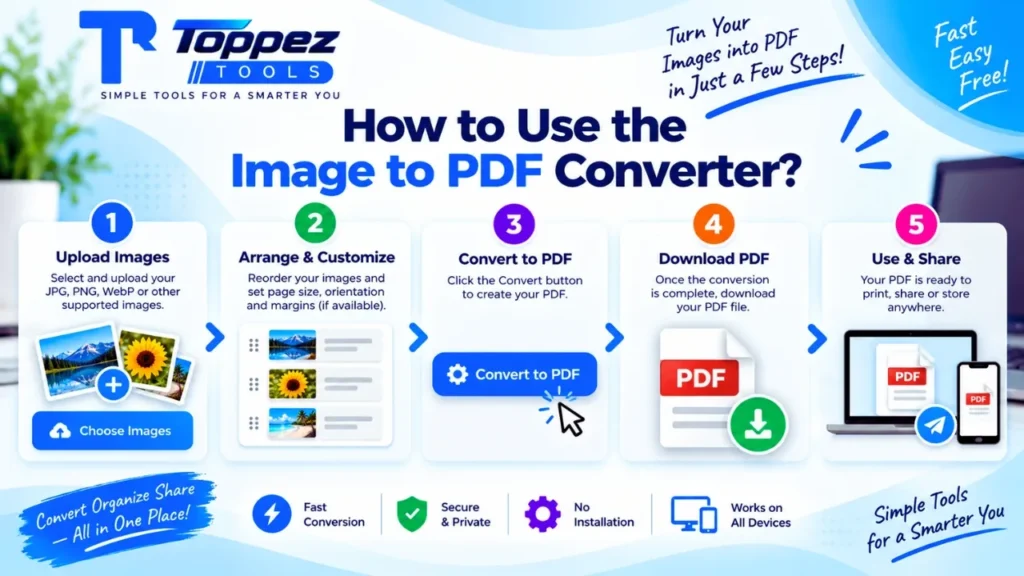
Converting images into a PDF is simple with the Toppez Tools Image to PDF Converter. Follow these steps to create your PDF quickly.
1. Upload Your Images
Click the Choose Files or upload button and select the JPG, PNG, WebP, or other supported images from your device.
2. Review Your Images
Check the uploaded images in the preview area. Make sure all the files you want to include are selected.
3. Reorder the Images
Drag and drop the images and arrange them as your preferred order need. This determines the page sequence in the final PDF.
4. Choose Page Size
Select your preferred PDF page size, such as A4 or other available options, depending on your requirements.
5. Select Orientation
Choose Portrait or Landscape orientation based on the shape and content of your images.
6. Adjust Margins
Set the desired page margins to control the spacing between the image and the edges of the PDF page.
7. Preview Your PDF
Review the page layout and image order before generating the final document. Make any necessary adjustments.
8. Create the PDF
Click the Convert to PDF or Create PDF button to generate your document.
9. Download Your PDF
Once the conversion is complete, click Download PDF to save the finished document to your device.
Why Use This Image to PDF Converter Tool?
Creating a PDF from multiple images should be quick and straightforward. The Toppez Tools Image to PDF Converter provides useful customization options so you can create organized PDF documents without relying on complicated software.
1. Convert Images Easily
Turn JPG, PNG, WebP, and other supported images into PDF documents with just a few simple steps.
2. Combine Multiple Images
Create a single PDF from multiple images instead of managing and sharing individual image files.
3. Control Image Order
Rearrange your images before conversion so every page appears in the correct sequence.
4. Customize Page Layout
Choose your preferred page size, orientation, and margins to create a PDF that suits your requirements.
5. Useful for Different Purposes
Create PDFs for assignments, scanned documents, receipts, forms, certificates, photographs, reports, and business documents.
6. Save Time
Convert images directly instead of manually inserting them into a document and exporting it as a PDF.
7. Free Online Tool
Use the Image to PDF Converter for everyday conversion tasks without purchasing dedicated PDF software.
8. No Installation Required
Access the tool directly from your browser without downloading additional applications.
9. Easy for Beginners
The simple workflow makes it suitable for students, professionals, businesses, content creators, and everyday users.
10. Convenient and Flexible
Whether you need a single image converted or several images combined into one PDF, the tool provides a convenient way to create your document online.
Supported Formats & Specifications:
| Feature | Specification |
|---|---|
| Input Formats | JPG, JPEG, PNG, WebP, and other supported image formats |
| Output Format | |
| Multiple Images | Supported |
| Images per PDF | Multiple images can be combined into one PDF |
| Image Ordering | Reorder images before conversion |
| Page Size | Customizable; available sizes depend on the tool |
| Page Orientation | Portrait and Landscape |
| Margins | Adjustable |
| Image Preview | Supported |
| PDF Preview | Available where implemented |
| Image Quality | High-quality output based on source image and conversion settings |
| Image Scaling | Fit image to page according to selected layout/settings |
| Conversion Type | Image to PDF |
| Processing | Online browser-based conversion |
| Installation Required | No |
| Device Support | Desktop, laptop, tablet, and mobile browsers |
| Cost | Free |
Client-Side Privacy Feature:
| Privacy Feature | Specification |
|---|---|
| Processing Method | 100% Client-Side |
| Server Upload | No image upload to server |
| File Privacy | Images remain on the user’s device during processing |
| Data Storage | No server-side image storage |
Common Mistakes When Converting Images to PDF:
1. Uploading Images in the Wrong Order
When converting multiple images into one PDF, an incorrect image order can make the final document confusing. Always review and rearrange the files before creating the PDF.
2. Using Low-Quality Images
Low-resolution or heavily compressed images may look blurry in the final PDF. Whenever possible, use the original, high-quality image files.
3. Choosing the Wrong Page Orientation
Portrait works well for documents and vertical images, while Landscape is generally better for wide images. Select the orientation that best matches your content.
4. Ignoring Page Size
Choosing an unsuitable page size can create unnecessary white space or cause images to appear too small. Select an appropriate size such as A4 when preparing standard documents.
5. Setting Incorrect Margins
Very large margins can reduce the usable page area, while extremely small margins may make the layout look crowded. Choose margins that provide a balanced appearance.
6. Forgetting Unwanted Images
Review the uploaded image list before conversion. Remove any duplicate, incorrect, or unnecessary images so they do not appear in the final PDF.
7. Not Checking the Preview
Always preview the document before downloading when a preview option is available. Check the image order, orientation, page size, margins, and overall layout.
8. Using Extremely Large Images
Very large image files can increase the final PDF size and may take longer to process. Use appropriately sized images when possible.
9. Ignoring Image Orientation
Images captured with different orientations may appear unexpectedly in the PDF. Check the preview and adjust the layout or source images if necessary.
10. Not Checking the Final PDF
After downloading, open the PDF and verify that all images are present, correctly ordered, and displayed as expected before sharing or submitting the document.
Frequently Asked Questions (FAQs):
Upload all the photos you want to include, then arrange them in your preferred sequence. Choose the required page size, orientation, and margin settings if available. After checking the layout, create the PDF to combine the selected images into one organized document.
Yes, if A4 is available among the page-size options. Select A4 before creating your PDF and choose Portrait or Landscape orientation according to your images. This is particularly useful when preparing documents for printing, school submissions, office work, or formal applications.
After selecting your images, use the available reordering option to move them into the required sequence. The first image becomes the first page, followed by the remaining images according to their arranged order. Always review the sequence before generating the final PDF.
Yes, the converter can handle images with different orientations. Depending on your selected page-layout settings, images can be placed within the PDF pages while maintaining the intended orientation and layout. Previewing the result before downloading is recommended when working with mixed image orientations.
PDF pages generally use a page background rather than preserving transparency in the same way as PNG. If a transparent PNG is converted, transparent areas may appear against the selected or default PDF page background. Check the preview to confirm the final appearance before downloading.
Yes. Screenshots saved in supported formats such as PNG or JPG can be converted into PDF pages. This is useful for combining screenshots of instructions, conversations, receipts, webpages, app screens, or other visual information into a single document.
Yes. If your scanned pages are already saved as JPG, PNG, WebP, or another supported image format, you can use them directly. Upload the scanned images, arrange the pages, select your preferred layout, and create a PDF without repeating the scanning process.
Adjust the page size, orientation, and margins to better match your image dimensions. Selecting an appropriate layout can reduce unnecessary whitespace. If the converter provides image-fit or scaling controls, use them carefully to achieve a balanced page without cutting off important content.
Yes. You do not need multiple images to create a PDF. Upload a single supported image, select the desired page settings, and generate the document. The resulting PDF can contain that image as a single page.
An image-created PDF can be useful for assignments, scanned paperwork, receipts, forms, certificates, portfolios, photo collections, reports, and document submissions. Combining related images into one PDF can make the files easier to organize, share, print, and upload to websites that accept PDF documents.
Related Tools:
🔥 Popular Tools on Toppez
Explore our most frequently used utilities across the platform