
Convert JPG to PNG Online – Free & Instant Image Converter
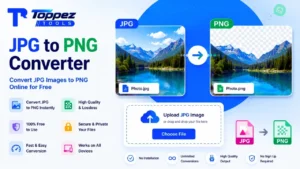
Turn your JPG images into crisp, transparent-ready PNG files instantly — right in your browser, with zero quality loss and zero uploads.
Convert JPG to PNG online instantly with a free, browser-based tool that requires no software installation or sign-up. Enjoy lossless quality, transparency support, and 100% private client-side processing — your images never touch a server. Perfect for logos, screenshots, and design assets needing crisp, high-fidelity output in seconds.
Smart JPG to PNG Converter
Convert JPG/JPEG images into high-quality PNG format with lossless compression and zero server uploads.
Drag & drop your JPG/JPEG image here
Converts standard JPG files to transparent-ready PNG (Max 25MB)
Converts lossy 24-bit JPEG to lossless Portable Network Graphics (PNG).
Converting an image from JPG to PNG sounds simple, but the format you choose has a real impact on how your images look, load, and perform across websites, design projects, and printed materials. JPG is excellent for photographs because of its small file size, but it falls apart the moment you need transparency, sharp edges, or lossless quality — think logos, icons, screenshots, or product images that need a clean background. That’s exactly the gap this tool closes.
Toppez Tools’ JPG to PNG converter lets you convert JPG to PNG online without installing any software, without creating an account, and without waiting on a slow upload-and-download cycle. Everything happens directly inside your browser using client-side processing, which means your image files are never transmitted to a remote server. For freelancers, designers, marketers, and everyday users handling sensitive or proprietary images, this privacy-first approach isn’t a bonus feature — it’s essential.
Speed is the other half of the equation. Traditional desktop software requires downloads, installations, and manual export settings that eat up time you don’t have. Server-based converters, meanwhile, often queue your file, compress it aggressively, or stamp it with a watermark unless you pay. This tool skips all of that friction. You drag in your JPG, the browser does the heavy lifting using modern JavaScript-based image processing, and your PNG file is ready to download within seconds — often before a typical webpage would even finish loading elsewhere.
Whether you’re preparing images for a website, a presentation, an e-commerce listing, or a design mockup, this converter delivers a dependable, repeatable result every time, with no hidden costs and no compromise on image fidelity.
Key Features of Toppez Tools JPG to PNG Converter:
- 100% Client-Side Processing: Your JPG files are converted locally in your browser’s memory. Nothing is uploaded to any server, making this ideal for confidential business documents, client work, or personal photos.
- Lossless PNG Output: Unlike lossy JPG compression, the PNG format preserves every pixel exactly. The converter maintains full image fidelity with no additional artifacting introduced during conversion.
- Instant Bulk Processing: Convert multiple JPG files to PNG simultaneously instead of processing them one at a time, saving significant time on batch design or content workflows.
- Transparency-Ready Output: PNG supports alpha channel transparency. While a standard JPG has no transparency data, the converted PNG file is structured to support transparent backgrounds for further editing.
- Zero Software Installation: Works entirely inside modern browsers like Chrome, Firefox, Edge, and Safari — no plugins, downloads, or system permissions required.
- Fully Responsive Interface: Convert images on desktop, tablet, or mobile with a consistent, touch-friendly experience across all screen sizes.
- No Watermarks or Hidden Fees: The tool delivers clean, unbranded output files with no forced sign-up walls or premium paywalls blocking core functionality.
- Cross-Platform Compatibility: Since it’s browser-based, it works identically on Windows, macOS, Linux, iOS, and Android without any OS-specific limitations.
How to Use the JPG to PNG Converter?
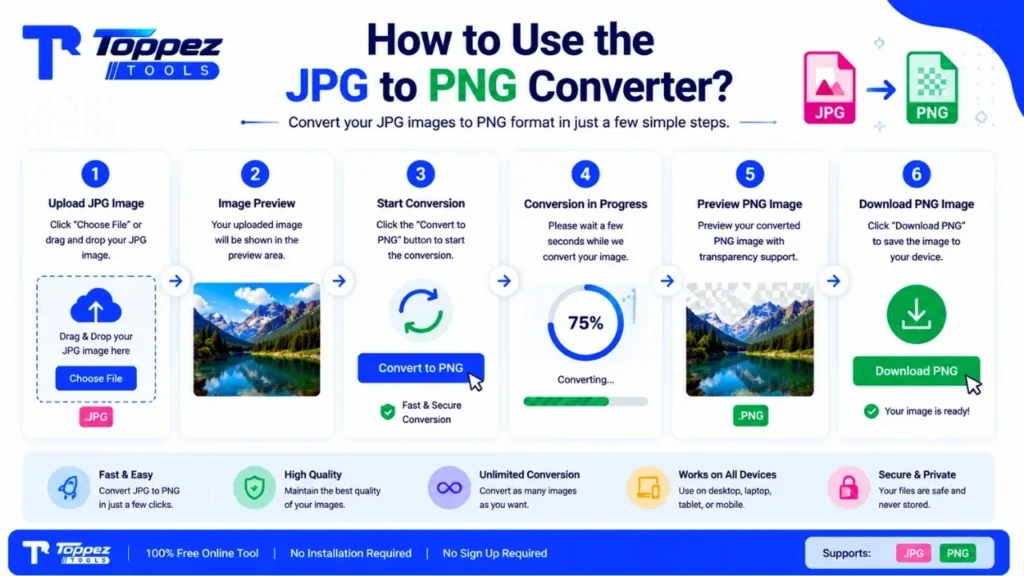
Step 1: Upload Your JPG File
Click the upload area or simply drag and drop your JPG or JPEG image directly into the tool. You can select a single file or, for bulk conversion, hold and select multiple images at once from your device’s file explorer.
Step 2: Let the Browser Process the Image
Once uploaded, the tool automatically reads the image data and begins converting it into PNG format using your browser’s native canvas rendering engine. This happens almost instantly since no data leaves your device — there’s no upload progress bar to wait through.
Step 3: Preview and Adjust (Optional)
Before finalizing, review the converted image preview to confirm quality and dimensions. If the tool offers optional settings like resizing or background transparency, configure them at this stage to match your intended use case, whether that’s a website graphic, print asset, or app icon.
Step 4: Download Your PNG File
Click the download button to save your converted PNG file directly to your device. For bulk conversions, use the “Download All” option to receive your files as a compressed ZIP folder, keeping your workflow organized and efficient.
That’s the entire process — no account creation, no email verification, and no waiting in a server queue. The straightforward four-step flow is designed so that even first-time users can complete a conversion in under a minute, while advanced users benefit from the bulk-processing speed when handling dozens of images for a larger project.
Why Choose JPG to PNG? (The Real Benefits)
Choosing a browser-based converter over desktop software or clunky server-based alternatives comes down to three practical advantages: speed, privacy, and cost.
Performance and Core Web Vitals:
Desktop applications like Photoshop or GIMP are powerful, but they’re overkill for a simple format conversion, requiring significant load time, memory, and system resources just to open. This tool, by contrast, is lightweight and loads instantly, contributing to a fast, frustration-free experience that respects your time — the same principle search engines reward when measuring page speed and responsiveness on websites.
Privacy and Compliance:
Many online converters silently upload your files to a remote server for processing, which creates real risk if you’re handling client assets, internal business graphics, or personal photos. Because this tool processes everything locally within your browser, your images never touch external storage. This is particularly valuable for businesses operating under data-privacy regulations like GDPR, where minimizing data transfer is a meaningful compliance advantage.
Zero Cost, Zero Installation:
There’s no software license to purchase, no subscription to manage, and no disk space consumed by an application you’ll only use occasionally. You simply open the tool in any browser, convert your image, and close the tab — the digital equivalent of a single-use tool that requires no maintenance or updates.
Reliability Across Devices:
Because the tool isn’t tied to a specific operating system, you get identical performance whether you’re on a work laptop, a personal Mac, or a mobile phone. This consistency removes the compatibility headaches that come with desktop software tied to specific OS versions.
Together, these advantages make browser-based conversion the more practical choice for individuals and teams who need dependable results without added complexity.
Supported Formats & Specifications:
| Specification / Parameter | Supported Values / Range | Recommended Use Case |
|---|---|---|
| Input Format | JPG, JPEG | Standard photo and image files |
| Output Format | PNG (8-bit/24-bit, with alpha channel) | Web graphics, transparent images, logos |
| Max File Size (per image) | Up to 25 MB | High-resolution photography, print assets |
| Batch Upload Limit | Up to 50 files per session | Bulk product photos, design asset libraries |
| Color Mode | RGB, RGBA | Full-color web and design graphics |
| Compression Type | Lossless (PNG standard) | Icons, screenshots, text-heavy images |
| Resolution Handling | Preserves original resolution | Print, high-DPI displays |
| Transparency Support | Alpha channel enabled | Logos, overlays, UI elements |
| Browser Compatibility | Chrome, Firefox, Safari, Edge (latest versions) | Desktop and mobile browsing |
| Processing Location | Client-side (local browser) | Privacy-sensitive or confidential files |
Common Mistakes When Convert JPG to PNG:
Converting Already-Compressed JPGs Expecting Quality Recovery:
Converting a JPG to PNG does not undo compression artifacts already baked into the original file. If your JPG was heavily compressed, the resulting PNG will preserve those same imperfections — just in a larger, lossless file. Always start from the highest-quality JPG source available.
Ignoring File Size Increases:
PNG files are inherently larger than JPGs because they’re uncompressed or losslessly compressed. Converting large batches of photographic images to PNG without a clear reason can bloat your storage or slow down web pages unnecessarily. Reserve PNG for images that genuinely need transparency or lossless detail, like icons or graphics with text.
Assuming Transparency Appears Automatically:
A converted PNG file supports transparency structurally, but it won’t automatically remove the JPG’s solid background. Background removal is a separate editing step, and skipping it leads to confusion when users expect a transparent result straight out of conversion.
Skipping Dimension Checks Before Bulk Conversion:
When converting multiple files at once, it’s easy to overlook that source images have inconsistent dimensions. Always verify sizing requirements for your end use — website banners, thumbnails, app icons — before batch processing to avoid a mismatched final asset library.
Using PNG for Every Image by Default:
PNG isn’t universally “better” than JPG. For photographs and complex imagery without transparency needs, JPG remains more efficient in file size with negligible visible quality difference. Match the format to the actual use case rather than defaulting to PNG out of habit.
Frequently Asked Questions (FAQs):
No. Converting to PNG preserves whatever quality your original JPG already had — it doesn’t restore detail lost during the JPG’s initial compression. PNG simply stops further quality loss from that point forward, since it uses lossless compression rather than reducing quality with each save.
No. This tool processes your JPG files entirely within your browser using client-side technology. Your images are never transmitted, stored, or accessed by any external server, making the entire process private by design.
Yes. The tool supports bulk uploads, allowing you to select and convert up to 50 images in a single session. Once processed, you can download them individually or as a single compressed ZIP file for convenience.
This is expected behavior. PNG uses lossless compression, which retains every pixel of image data, resulting in a larger file size compared to JPG’s lossy compression. The trade-off is higher fidelity and support for transparency.
No. Converting format alone doesn’t remove or alter the image’s background. If you need a transparent background, that requires a separate background-removal step using dedicated editing tools after conversion.
No. There are no daily limits, subscription requirements, or hidden usage caps. You can convert as many images as needed, whenever you need to, at no cost.
Each individual JPG file can be up to 25 MB. This comfortably covers high-resolution photography and most professional-grade image files without requiring compression beforehand.
Yes. The interface is fully responsive and functions identically on smartphones and tablets as it does on desktop browsers, with no separate app download required.
Yes. The tool preserves your image’s original resolution and dimensions throughout the conversion process, ensuring no unwanted cropping, stretching, or scaling occurs.
Yes. Because processing happens locally in your browser rather than on a remote server, no image data is transmitted or stored externally, making it a safe option for sensitive, proprietary, or client-confidential visual content.
Related Tools:
🔥 Popular Tools on Toppez
Explore our most frequently used utilities across the platform