
Image Cropper – Crop Images Online free and fast
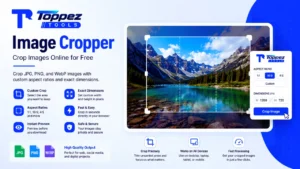
Crop JPG, PNG, and WebP images online free with custom aspect ratios and exact dimensions—fast, easy, and fast.
Crop images online for free with our easy-to-use Image Cropper. Upload JPG, PNG, or WebP images, choose a custom crop area, aspect ratio, or exact dimensions, and preview your result instantly. Perfect for social media, websites, profiles, banners, and more—without unnecessary software or complicated editing tools.
Smart Image Cropper
Crop JPG, PNG, and WebP images online with custom aspect ratios, freeform cropping, and instant lossless download.
Drag & drop your image here
Supports JPG, PNG, and next-gen WebP formats (Max 25MB)
You often need to crop images to achieve the right size, shape, or composition for websites, social media posts, profile pictures, banners, or other digital content. However, using complex photo-editing software solely for cropping can be time-consuming.
Our ‘Image Cropper’ tool makes this process incredibly simple. Just upload your image (in JPG, PNG, or WebP format), select the area you want to keep, and crop it instantly. You can also use popular aspect ratios like 1:1, 16:9, and 4:5, or specify exact pixel dimensions for precise results.
Whether you need a square profile picture, a landscape banner, or a custom-sized image for your website, this free online tool helps you crop images quickly without the need to install any additional software.
Key Features of Toppez Tools Image Cropper:
Our Image Cropper is designed to make the process of cropping images fast, easy, and accessible to everyone. Whether you are preparing images for social media, websites, blogs, online stores, or personal projects, this tool provides all the necessary cropping capabilities without the need for professional photo-editing software.
1. Crop Images Online for Free
Crop images directly in your browser without installing desktop software or additional applications. This tool is built for quick and convenient image editing.
2. Supports JPG, PNG, and WebP Formats
Upload widely used image formats such as JPG, PNG, and WebP. This makes it suitable for most images used on websites and social media platforms.
3. Custom Crop Area
Select exactly which part of the image you want to keep. Manually adjust the crop area to remove unwanted backgrounds, edges, or objects and focus on the main subject of the image.
4. Popular Aspect Ratios
Choose from commonly used aspect ratios like 1:1, 16:9, and 4:5. These presets simplify the process of preparing images for various platforms and content formats.
5. Custom Aspect Ratio
Need something different? Set your own aspect ratio to crop images according to your specific requirements. This is particularly useful for website layouts, advertisements, banners, and custom designs.
6. Precise Pixel Dimensions
Crop images to exact width and height measurements. Enter your desired dimensions if you need specific image sizes for a particular website, design, or piece of content.
7. Instant Preview
See the cropped area and the final look of the image before downloading. The instant preview feature helps you make necessary adjustments and easily achieve the desired result.
8. Simple and Beginner-Friendly
No advanced editing skills are required. Its clean interface and intuitive controls make the image cropping process easy for both new and experienced users.
9. Fast Processing
Crop images quickly in just a few simple steps. It is designed for everyday image editing tasks where speed and convenience are paramount.
10. Works Directly in the Browser
Use this image cropper directly from a modern web browser without installing any complex software. This makes cropping images incredibly convenient across desktops, laptops, tablets, and other supported devices.
How to Use the Image Cropper?
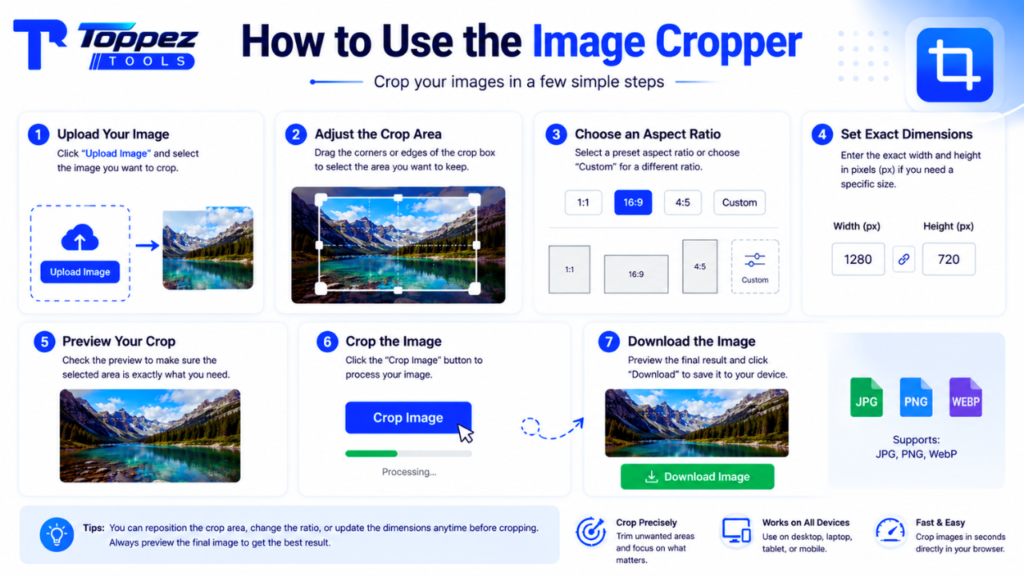
Cropping or resizing images using our Image Cropper is quick and easy. Follow the simple steps below to crop your image to your preferred size, shape, or aspect ratio.
1. Upload Your Image
Click the ‘Upload Image’ button and select the image you wish to crop from your device. This tool supports popular formats such as JPG, PNG, and WebP.
2. Adjust the Crop Area
Once the image is uploaded, a crop box or frame will appear. Drag the corners or edges of the box to resize it and select the specific part of the image you want to keep. You can also reposition the crop area to focus on the most important part of the image.
3. Select an Aspect Ratio
If you need a specific shape, choose from preset aspect ratios like 1:1, 16:9, or 4:5. You can also use a custom ratio if your project requires different dimensions.
4. Set Exact Dimensions
If you need a specific image size, enter your desired width and height in pixels. This is particularly useful when specific dimensions are required for websites, social media platforms, or design projects.
5. Preview the Cropped Area
Check the preview to ensure the selected area includes everything you need. Adjust the crop position or dimensions if necessary.
6. Crop the Image
Once you are satisfied with your selection, click the ‘Crop’ button. The tool will process your image and generate the cropped version.
7. Download the Cropped Image
Review the final result and click the ‘Download’ button to save the cropped image to your device. You can then use it on your website, social media, profile picture, banner, blog, or other digital projects.
Why use this Image Cropper tool?
Cropping or resizing images shouldn’t require complex editing software or advanced technical skills. Our image cropper tool offers a simple and convenient way to adjust the visible area of an image and prepare it for various digital uses.
1. Fast and Easy
Crop images in just a few simple steps. Upload your image, select the area you want to keep, and download the result.
2. Completely Free
You can use this image cropper for everyday cropping tasks without the need for expensive image-editing software or paid subscriptions.
3. No Software Installation Required
This tool works online via your web browser, so there is no need to download or install any additional editing software.
4. Flexible Cropping Options
Choose from popular aspect ratios like 1:1, 16:9, or 4:5, or create a custom crop tailored to your specific needs.
5. Suitable for Various Platforms
Prepare images with the right dimensions and aspect ratios for social media posts, profile pictures, websites, blogs, banners, thumbnails, and online stores.
6. Beginner-Friendly
You don’t need professional photo-editing experience. Its intuitive interface makes it easy for beginners to crop images accurately.
7. Precise Results
When exact dimensions matter, you can use specific pixel measurements to create images that perfectly match your project’s requirements.
8. Save Time
Instead of opening complex editing applications for simple cropping tasks, you can get the job done quickly using a dedicated online cropping tool. Whether it is creating a square profile image, removing unwanted parts, or preparing a photo for a specific layout, this free online image cropper offers a convenient solution.
Supported Formats & Specifications:
| Feature | Specification |
|---|---|
| Supported Formats | JPG, JPEG, PNG, WebP |
| Image Upload | Upload images directly from your device |
| Crop Type | Freeform and fixed-ratio cropping |
| Aspect Ratios | 1:1, 16:9, 4:5, and Custom |
| Custom Aspect Ratio | Supported |
| Exact Dimensions | Custom width and height in pixels |
| Preview | Instant crop preview |
| Output Format | Based on the tool’s supported export options |
| Transparency | PNG transparency can be preserved where supported |
| Processing | Fast browser-based image cropping |
| Installation Required | No |
| Device Support | Desktop, laptop, tablet, and mobile browsers |
| Cost | Free |
Common Mistakes When Cropping Images:
While cropping an image may seem simple, certain common mistakes can negatively impact the final result. Avoiding these issues will help you create cleaner, more engaging images for websites, social media, and other digital platforms.
1. Over-cropping
Removing too much of the image can cut off the main subject, text, or other vital visual elements. Always carefully review the cropped area before finalizing the image.
2. Ignoring the Aspect Ratio
Failing to use the appropriate aspect ratio can make it difficult to use the image on specific platforms. For instance, a square image might not fit well in a wide banner space. Choose an aspect ratio that aligns with your intended use.
3. Stretching or Distorting the Image
Cropping and resizing are two different processes. When manually adjusting width and height, ensure the image’s natural proportions are not ruined or distorted. Maintain the original aspect ratio whenever possible.
4. Selecting Incorrect Dimensions
Using dimensions that are too small can result in poor image quality when displayed at a larger size. Before cropping an image for a specific website or platform, verify the required pixel dimensions.
5. Cutting Out Important Content
Ensure that faces, products, logos, text, and other key elements remain fully visible. Instead of simply focusing on the center, carefully determine the area to be cropped.
6. Overlooking Mobile Displays
Images may appear differently on desktop and mobile screens. If the image is intended for a responsive website, consider how the cropped version will look across various screen sizes.
7. Repeatedly Editing and Saving
Repeatedly processing and saving a compressed image—especially in formats like JPEG—can degrade its quality. Whenever possible, always work with the original, highest-quality image.
8. Not Verifying the Final Image
Always preview the cropped image before downloading it. A quick final check can help you identify issues such as unwanted edges, missing content, incorrect aspect ratios, or unsuitable dimensions.
Frequently Asked Questions (FAQs):
An image cropper is an online tool that allows you to remove unwanted parts of an image and keep only the necessary section. It helps create images with specific shapes, aspect ratios, or dimensions for websites, social media, profile pictures, banners, blogs, and other digital content.
Yes, our image cropper is designed to be used for free. Without needing professional image-editing software, you can upload an image, select the crop area, choose an aspect ratio or custom dimensions, preview the result, and download the cropped image.
This image cropper supports popular image formats such as JPG, JPEG, PNG, and WebP. Most images commonly used for websites, social media, blogs, online stores, and everyday digital projects fall under these formats.
Yes. You can choose from popular aspect ratios like 1:1, 16:9, and 4:5. These presets make it easy to create images with the correct proportions for various websites, social media platforms, banners, profile pictures, and other content.
Yes, you can specify exact width and height values in pixels. This is particularly useful when you need images of specific dimensions for websites, applications, advertisements, or design projects.
Cropping generally does not reduce image quality, as it simply removes unwanted parts of the image. However, exporting or repeatedly compressing the image can affect quality. For the best results, you should use the highest-quality original image.
Yes. You can use presets or custom aspect ratios to prepare images for social media posts, profile pictures, stories, thumbnails, and other content. Selecting the correct aspect ratio ensures that the important parts of the image remain visible.
No. The image cropper is designed to work online via a compatible web browser. You can crop images without installing complex photo-editing software, making quick editing convenient on supported devices.
Yes, it is possible to crop PNG images. If the tool supports preserving transparency during export or saving, the transparent areas remain transparent in the final PNG file. This is particularly useful for logos, graphics, icons, product images, and other designs featuring transparent backgrounds.
Image privacy depends on how the specific tool processes uploaded files. If the image cropper tool processes the image directly within your browser without uploading it to a server, the image remains on your device. Always check the tool’s privacy policy before uploading sensitive images.
Related Tools:
🔥 Popular Tools on Toppez
Explore our most frequently used utilities across the platform