
Image Resizer – Resize Images Online Fast
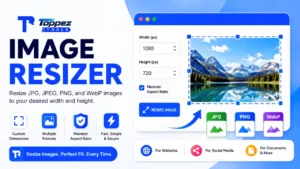
Resize JPG, PNG & WebP Images to Your Preferred Dimensions
Resize JPG, PNG, and WebP images quickly with Toppez Tools Image Resizer. Set your preferred width and height for websites, social media, documents, forms, and everyday digital tasks while keeping your images ready for their intended use.
Smart Image Resizer
Resize JPG, PNG, and WebP images by exact pixel dimensions, percentage, or social media presets with instant browser-side processing.
Drag & drop your image here
Supports JPG, PNG, and next-gen WebP formats (Max 25MB)
You often need to resize images before uploading them to websites, sharing them on social media, attaching them to documents, or submitting them via online forms. Excessively large images can consume unnecessary storage space or exceed the size limits prescribed or recommended by specific platforms.
With ‘Toppez Tools Image Resizer,’ you can easily adjust the width and height of JPG, PNG, and WebP images to suit your needs. By selecting your preferred dimensions, you can prepare images for websites, social media posts, documents, various application forms, and everyday digital tasks.
Whether you are resizing images for online forms, adjusting dimensions for a website, or preparing graphics for social media, this tool offers a simple and convenient way to achieve the desired size without the need for professional image-editing software.
Key Features of Toppez Tools Image Resizer:
Toppez Tools Image Resizer is designed to make resizing images for everyday needs simple, fast, and convenient. Whether you are preparing images for websites, social media, documents, online applications, or other digital tasks, this tool helps you adjust image dimensions to meet your specific requirements.
1. Fast Image Resizing
Quickly resize images without the need for complex image-editing software or technical expertise.
2. Support for Popular Formats
Easily work with commonly used image formats such as JPG, JPEG, PNG, and WebP.
3. Custom Image Dimensions
Set the width and height of images according to the specific requirements of various websites, platforms, forms, and documents.
4. Aspect Ratio Preservation
Maintain the original aspect ratio during resizing to ensure images do not become unnaturally stretched or distorted.
5. Easy Image Upload
Upload images effortlessly using a simple and intuitive file-selection interface.
6. User-Friendly Interface
Resize images without navigating complex settings; this makes it highly suitable for new users, freelancers, office workers, content creators, and general users alike.
7. Suitable for Various Digital Tasks
Prepare images for websites, social media, documents, online forms, applications, and other digital platforms.
8. Fast Download
Download the resized image immediately after processing and use it right away for your needs.
9. Compatible with All Devices
Use this browser-based tool on desktops, laptops, tablets, and smartphones without installing any additional software.
Overall, this Image Resizer offers a simple and effective solution for resizing images for websites, documents, social media, and everyday digital tasks.
How to Use the Toppez Tools Image Resizer
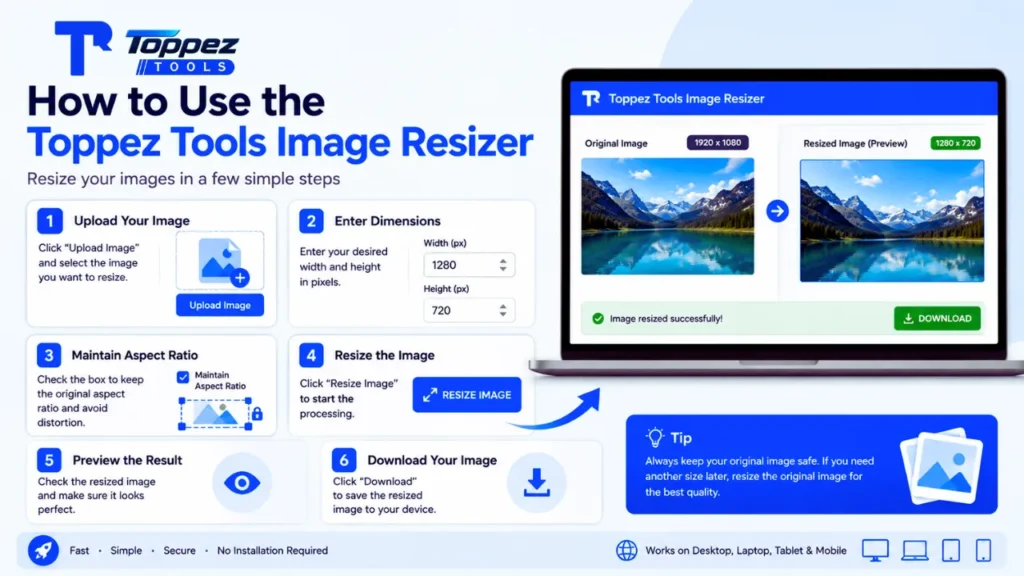
Resizing images with Toppez Tools is incredibly easy and requires no advanced image-editing skills. Follow the steps below to quickly resize your images to your specifications.
1. Upload the Image
Click the ‘Upload Image’ button and select the image you wish to resize from your device. Depending on the tool’s interface, you can also simply drag and drop the image into the upload area.
2. Select the Image
After uploading, the tool will display your selected image along with its current dimensions. Ensure you have uploaded the correct file before proceeding to the next step.
3. Enter Your Desired Dimensions
Enter the width and height you want for the resized image. You can determine these dimensions based on where the image will be used—such as on a website, social media platform, online form, document, or application.
4. Maintain Aspect Ratio
To ensure the image does not become stretched or distorted, keep the ‘Maintain Aspect Ratio’ option enabled (if available). This preserves the image’s original proportions while it is being resized.
5. Resize the Image
Click the ‘Resize Image’ button to start the process. The tool will adjust the image according to the dimensions you specified.
6. Preview the Result
After resizing, check the resulting image to ensure the dimensions and visual appearance meet your requirements.
7. Download the Resized Image
If you are satisfied with the result, click ‘Download’ to save the image to your device.
Tip: Always keep a safe copy of your original image before resizing. If you need a different size later, you can use the original file instead of repeatedly resizing an image that has already been altered.
Why Use Toppez Tools Image Resizer?
Often, the dimensions of an image may not match the specific requirements of a website, social media platform, document, or online application. Toppez Tools Image Resizer allows you to easily resize images for various digital needs without requiring professional image-editing software.
Preparing Images for Websites
Large images are not always suitable for specific spaces. By resizing images, you can make them fit perfectly on websites, blogs, landing pages, and other online content.
Meeting Online Form Requirements
Many online applications and forms have specific guidelines regarding image dimensions or file sizes. You can use the image resizer to adjust your image or document to the required size before uploading it.
Creating Images for Social Media
Social media platforms often have different recommended image sizes or standards. You can resize images to ensure they are suitable for posts, profiles, banners, thumbnails, and other social media content.
Preparing Images for Documents
Images used in resumes, reports, presentations, certificates, and other documents may require specific dimensions. Resizing allows you to create images that fit precisely into the designated spaces.
Suitable for Everyday Digital Tasks
Freelancers, office workers, students, content creators, and general users may frequently need to resize images. A dedicated image resizer makes this process quick and easy.
Avoiding Unwanted Distortion
Resizing an image while maintaining the ‘aspect ratio’ (the ratio of width to height) preserves the image’s original proportions. This minimizes the risk of the image appearing stretched or distorted.
In short, use Toppez Tools Image Resizer whenever you need to quickly adjust the width and height of an image for websites, social media, documents, online forms, applications, or other digital tasks.
Supported Formats & Specifications:
| Specification | Details |
|---|---|
| Supported Input Formats | JPG, JPEG, PNG, WebP |
| Output Format | Resized version of the uploaded image |
| Resize Options | Custom width and height |
| Aspect Ratio | Can be maintained to help prevent distortion |
| Processing | Online, browser-based |
| Device Support | Desktop, laptop, tablet, and mobile |
| Installation | No software installation required |
Note: Actual maximum file size, maximum dimensions, and available resizing options should be added once you finalize the tool’s technical limits.
Common Mistakes When Resizing Images
Avoid these common mistakes when using image resizing tools:
1. Entering Incorrect Dimensions
Always verify the required width and height before resizing. Using incorrect dimensions can render the image unsuitable for websites, social media platforms, documents, or online forms.
2. Ignoring the Aspect Ratio
Changing width and height independently can cause the image to stretch or become distorted. Whenever possible, keep the ‘Maintain Aspect Ratio’ option enabled to preserve the image’s original proportions.
3. Making the Image Too Small
Resizing an image to an unnecessarily small size can cause important details to become blurry or indistinct. Choose dimensions that align with your intended use.
4. Enlarging a Small Image Excessively
Significantly increasing the size of a low-resolution image can make it appear blurry or pixelated. Whenever possible, start with a high-quality original image.
5. Confusing Image Dimensions with File Size
Resizing changes the image’s width and height, but this does not necessarily mean the file size will decrease proportionally. If your primary goal is to reduce file size, use an ‘Image Compressor’ in addition to resizing the image.
6. Repeatedly Resizing the Same Image
Avoid repeatedly resizing an image that has already been resized. Save the original image and create new versions from that original whenever different sizes are needed.
7. Not Checking the Final Image
Always preview the resized image before downloading it. Ensure that the dimensions, aspect ratio, clarity, and overall appearance are suitable for your intended use.
8. Using the Wrong Image Format
Choose the format that is best suited for your specific purpose. Generally, JPG is suitable for photographs; PNG is advantageous for graphics and transparency; and WebP is widely used for web images.
Frequently Asked Questions (FAQs):
An image resizer is an online tool that allows you to change the width and height of an image. It helps you prepare images in JPG, PNG, and WebP formats for websites, social media, documents, online forms, applications, and other digital platforms without the need for professional image-editing software.
The Toppez Tools Image Resizer supports widely used formats such as JPG, JPEG, PNG, and WebP. You can upload an image in a supported format, resize it by selecting your preferred dimensions, and download the modified image for your specific digital needs.
Yes. You can specify your own width and height to resize the image according to your requirements. This custom sizing feature is particularly useful when specific image dimensions are required for websites, social media platforms, documents, applications, or online forms.
Resizing can affect image quality, especially when enlarging a small image significantly. Reducing the size of an image generally preserves details better than enlarging it. For the best results, use a high-quality original image and select dimensions appropriate for your intended use.
Yes, you can preserve the original aspect ratio by using the ‘Maintain Aspect Ratio’ option. This ensures the image does not become stretched or distorted when you change its width or height.
Yes. Resizing images is very useful when specific dimensions are required for online forms or applications. You can adjust the width and height of your image according to your requirements before uploading it.
Yes. You can resize images to fit the appropriate dimensions for various social media posts, profile pictures, banners, thumbnails, and other content. For the best results, check the platform’s current recommended dimensions before resizing.
Resizing an image can reduce its file size, especially when the dimensions are significantly decreased; however, this is not always guaranteed. If your primary goal is to reduce the file size, you can use an ‘Image Compressor’ after resizing if necessary.
Yes. Toppez Tools Image Resizer is a browser-based tool, so you can resize supported images without installing any specialized image-editing software. You can use it on a desktop, laptop, tablet, or mobile device.
Yes. It is recommended to safely save the original image before resizing. If you need a different size or want to create another version later, you can resize the original image again instead of repeatedly processing an image that has already been resized.
Related Tools:
🔥 Popular Tools on Toppez
Explore our most frequently used utilities across the platform