
Image Compressor – Compress Images Online
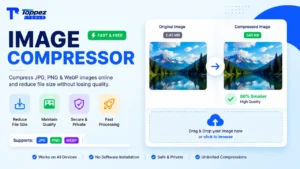
Compress JPG, PNG & WebP Images Online Without Compromising Quality
Compress JPG, PNG, and WebP images quickly with our easy-to-use online Image Compressor. Reduce image file size while maintaining good visual quality, making your images faster to upload, share, store, and use on websites, social media, documents, and everyday digital projects.
Smart Image Compressor
Reduce file size of JPG, PNG, and WebP images by up to 90% without losing quality.
Drag & drop your image here
Supports JPG, PNG, and next-gen WebP formats (Max 25MB)
Key Features of Toppez Tools Image Compressor:
Toppez Tools Image Compressor is designed to make image optimization simple, fast, and convenient for everyday use. Whether you are preparing images for a website, social media, documents, or online applications, the tool helps reduce file size without unnecessarily sacrificing visual quality.
1. Fast Image Compression
Compress images quickly without requiring complicated software or technical knowledge.
2. Supports Popular Formats
Work with commonly used JPG, PNG, and WebP image formats.
3. Reduced File Size
Shrink large image files to make them easier to upload, share, store, and manage.
4. Good Visual Quality
The compression process aims to maintain a good balance between smaller file size and image quality.
5. Easy Drag-and-Drop Upload
Upload images easily by selecting a file or using the convenient drag-and-drop interface.
6. Instant Preview
Preview your compressed image and compare the result with the original before downloading.
7. Download with One Click
Save the compressed image to your device quickly after processing.
8. Works Across Devices
Use the browser-based tool on desktops, laptops, tablets, and compatible mobile devices without installing additional software.
Overall, the Image Compressor provides a simple, practical way to optimize images for websites and everyday digital tasks.
How to Use the Image Compressor?
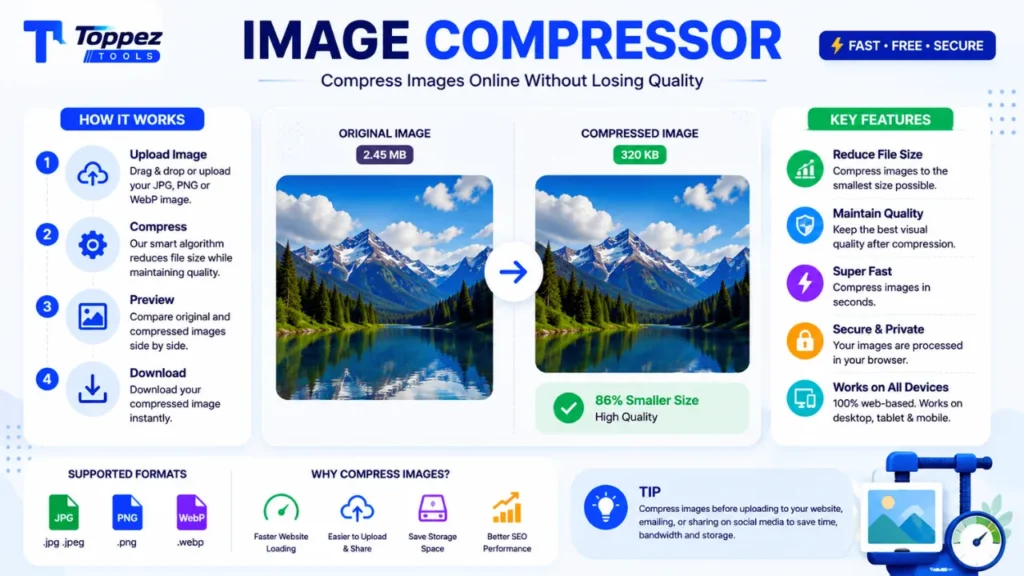
Compressing your images with Toppez Tools is quick and simple:
1. Upload Your Image
Click Upload Image or drag and drop your JPG, PNG, or WebP image into the upload area.
2. Choose Compression Settings
If the tool provides compression options, select your preferred quality or compression level. For most images, the default setting is a good choice.
3. Compress the Image
Click Compress Image and let the tool process your file. The compression time depends on the image size and your device.
4. Preview the Result
Compare the original and compressed image to check the visual quality and see how much the file size has been reduced.
5. Download the Compressed Image
When you’re satisfied with the result, click Download to save the compressed image to your device.
Tip: Compress images before uploading them to websites, sending them by email, or sharing them online to reduce file size and improve loading speed.
Why Use This Image Compressor Tool?
Large image files can take longer to upload, consume more storage space, and slow down websites. Toppez Tools Image Compressor provides a simple way to reduce image file size while maintaining good visual quality, making it useful for websites, social media, documents, online applications, and everyday digital tasks.
Improve Website Loading Speed
Large images are often a major contributor to webpage size. Compressing images before uploading them can help reduce the amount of data a webpage needs to load. Smaller image files can contribute to faster page loading and a better browsing experience.
Save Storage Space
Compressing images can reduce the amount of storage required on your computer, phone, cloud storage, or website hosting account. This can be particularly useful when working with many high-resolution images.
Make Uploading Easier
Large files can be inconvenient when uploading to websites, forms, email services, or online applications. A smaller compressed image is generally easier and faster to upload.
Share Images More Easily
Compressed images are more convenient to send through email, messaging platforms, and social media. Reducing unnecessary file size can also help when a service has file-size restrictions.
Optimize Images for Websites
Website owners, bloggers, freelancers, and digital marketers can compress images before publishing them online. Smaller image files can help reduce bandwidth usage and support better website performance.
Simple and Convenient
You do not need advanced image-editing skills to use an image compressor. Upload your image, compress it, preview the result, and download the optimized file.
In short, use Toppez Tools Image Compressor when you want smaller image files that remain suitable for websites, documents, sharing, and everyday digital work.
Supported Formats & Specifications:
| Specification | Details |
|---|---|
| Supported Input Formats | JPG, JPEG, PNG, WebP |
| Output Format | Compressed version of the uploaded image |
| Compression Type | Lossy or lossless depending on image format and compression settings |
| Quality | Adjustable/optimized to balance file size and visual quality |
| Processing | Online, browser-based |
| Device Support | Desktop, laptop, tablet, and mobile |
| Installation | No software installation required |
Note: Actual maximum file size and available compression settings should be added once you finalize the tool’s technical limits.
Common Mistakes When Compressing Images:
Avoid these common mistakes when using an image compressor:
- Using Excessive Compression
Compressing an image too aggressively can create visible artifacts, blur, and loss of detail. Choose a compression level that provides a good balance between file size and quality. - Compressing an Already Optimized Image
Repeatedly compressing the same image may reduce quality unnecessarily. Keep the original file and compress it again only when needed. - Ignoring Image Dimensions
Compression reduces file size, but a very large image may still remain unnecessarily large. For websites, resize oversized images before or along with compression when appropriate. - Using the Wrong Format
Different image formats are suitable for different purposes. JPG is commonly used for photographs, while PNG can be useful for graphics and transparency. WebP can provide efficient compression for many web images. - Not Checking the Final Image
Don’t judge an image only by its file size. Preview the compressed version and make sure important details, text, and edges still look clear. - Deleting the Original Image
Always keep a backup of your original, high-quality image before compression. This allows you to create a different version later without repeatedly compressing an already compressed file. - Uploading Oversized Images to Websites
Compressing an image is helpful, but uploading unnecessarily huge dimensions can still affect website performance. Use appropriate dimensions for the intended display size.
Frequently Asked Questions (FAQs):
An image compressor is an online tool that reduces the file size of an image while aiming to maintain good visual quality. It can make images easier to upload, share, store, and use on websites.
The tool is designed to support commonly used image formats such as JPG, JPEG, PNG, and WebP.
Compression can affect image quality depending on the compression method and level used. Toppez Tools aims to provide a practical balance between smaller file size and good visual quality.
Yes. You can upload a JPG or JPEG image to the Image Compressor and process it online without installing dedicated image-editing software.
Yes. PNG and WebP are among the supported formats listed for the tool. The available compression options may vary depending on the image format.
Smaller images generally require less data to load. Compressing images can help reduce webpage size, improve loading performance, and save bandwidth.
Yes. The tool is designed as a browser-based utility and can be used on compatible smartphones, tablets, laptops, and desktop computers.
Compression primarily reduces file size. If you also need to change the width or height of an image, use an Image Resizer rather than relying on compression alone.
Yes. It is recommended to keep a backup of your original image. This allows you to create another compressed version later without repeatedly processing the same file.
The Image Compressor is currently designed as a free tool. Toppez Tools may introduce additional advanced or Pro features in the future.
Related Tools:
🔥 Popular Tools on Toppez
Explore our most frequently used utilities across the platform